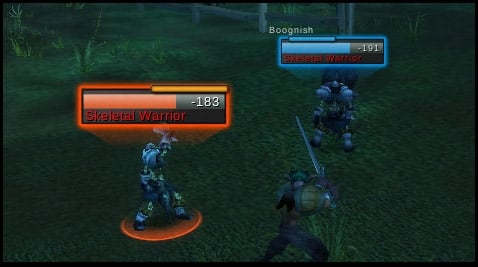
This is a stripped-down version of the Grey Theme for Tidy Plates, which happens to be the default Tidy Plates appearance. Tweak this package without worrying about overwriting customizations when you update. OR, use this package as a starting point for creating your own theme.
Theme Design
For instructions on how to create/modify this theme, Check out the files, listed below. If you're interested in
graphical design, check out "Styles.lua" and everything under the Artwork folder. If you're more concerned
with dynamic features (like scaling and opacity), look at "Functions.lua".
This package is a work-in-progress. If you've got suggestions, or want to add an article, let me know. Also, if
you need a hand, send me a note: binbwen@gmail.com
TidyPlates_GreyBasic.toc
It's the same name as the folder. Coincidence? No! This is what the WoW client looks for when searching the
addon folders. Pay attention to the 'dependency' tag ;-)
Styles.lua
This file includes instructions for designing the nameplate appearance.
Functions.lua
This file includes instructions for creating functions to control the dynamic elements of the nameplate.
Artwork\\Artwork_Sample.psd
Here's an example of how I design my nameplates.
Artwork\\tga\\
This folder contains the TGA versions of all the art - these files can be use directly.
Artwork\\png\\
This folder contains the PNG versions of all the art - these must be converted.
I use: http://www.wowinterface.com/downloads/info6127-BLP2PNG.html
Originally posted by danltiger This has been a frequent request... and I've caved in. 5.9.1 Trading one set of questions for another, but I think it'll make you coders happier.
In your theme table, you can now add a ".hitbox" category. (See the changelog, also)
Ex.
Code:
config.hitbox = {
width = 100,
height = 25,
}
As I've, the size may not always be accurate; particularly when you get a ton of adds popping up during combat; There's just no way to change the size of the clickable region during combat.
PS - (5.9.1 still pending approval. I'm going back to bed)
Technically, additive is the proper way to preview your design. I'm not enormously familiar with The Gimp, but since not everyone has access to a Photoshop license, I cobbled that example together.
When I eventually update this package, I'll see about correcting that detail.
Originally posted by AnrDaemon In Gimp Sample.xcf, although "Highlight" labeled as "Additive", it's blending mode set to Normal... or so does my 2.6.6 set it to...